Find where a USB-C display connection fails, check the laptop port and cable, and decide whether an existing HDMI connection can avoid an unnecessary purchase.
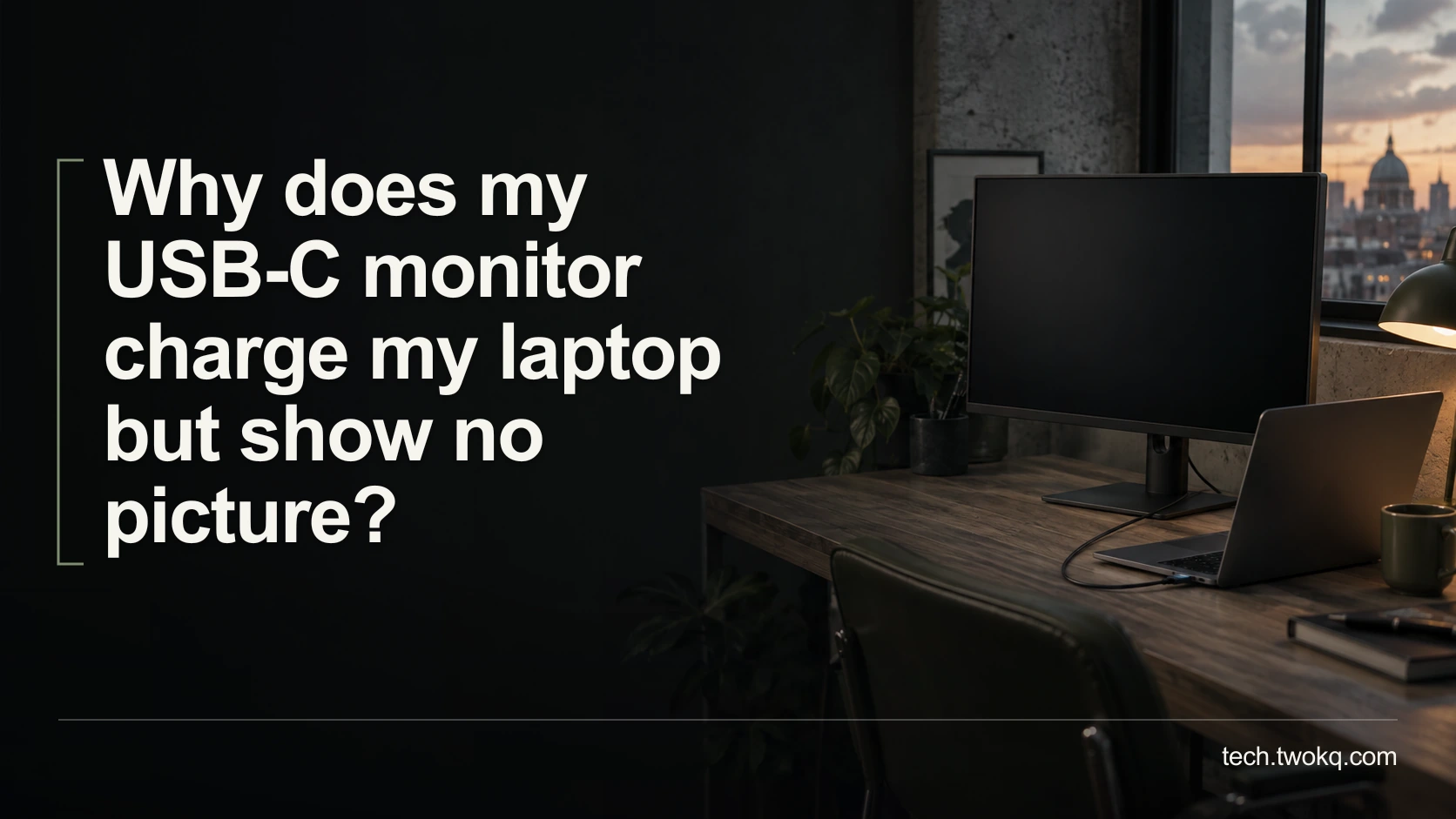
Direct answer: Charging proves that power is reaching your laptop, but it does not prove that the connection supports video. Check the exact laptop port, cable and monitor input for compatible video support, then test a direct connection without the dock. If the laptop port does not support the required display connection, changing display settings or buying another ordinary USB-C cable will not add it.
The confusing part is the matching connector. A cable can fit neatly at both ends while the capabilities you need are absent from one part of the connection. Treat the charging indicator as one observation, not a certificate that the whole arrangement should work.
My recommendation is to establish a working display connection using equipment you already have before buying a one-cable solution. That follows the reasoning in getting more from technology you already own, but the task here is narrower: find the precise break in a video connection.
Applies to: laptop-to-monitor USB-C troubleshooting, with documentation-based Windows 11 examples. Exact capabilities depend on your laptop, monitor, cable and dock models; this is not a report of testing your hardware.
Use the video signal chain
The video signal chain is an editorial troubleshooting method: trace the required signal from laptop port, through cable and optional dock, to the selected monitor input. Confirm each connection before changing software. Keep a short record of what you connected and what happened so that a useful test is not lost among repeated attempts.
Before starting, save your work and note any existing display settings. Have the laptop and monitor model numbers, their manuals and, if possible, the original monitor cable available. Do not disconnect a dock while an attached drive is writing files; finish the transfer and safely eject storage first. Stop using visibly damaged connectors or equipment that becomes abnormally hot.
Microsoft's Windows USB-C troubleshooting documentation describes display failures caused by unsupported alternate modes, unsuitable cables and connecting through the wrong port or a dock. DisplayPort Alternate Mode means carrying DisplayPort video through a compatible USB-C connection. The physical USB-C shape alone does not establish this capability.
Start at the laptop port
Find the ports section in the manual for your exact laptop configuration. Look for an explicit display-output statement, DisplayPort Alternate Mode or relevant Thunderbolt display support. Do not infer capability from a charging symbol or a specification for another laptop in the same product family.
If the laptop has several USB-C ports, compare each description. Photograph their locations and label your notes left-front, left-rear or right, rather than assuming that identical-looking sockets are interchangeable. A test performed in the wrong socket tells you little about a supported socket elsewhere.
Record a definite result: supported, unsupported or documentation unclear. If support is unclear, ask the manufacturer with your model identifier. Repeatedly reinstalling drivers is not a useful substitute for establishing the hardware specification. If video is unsupported, move directly to an alternative output the laptop and monitor both document.
Check the monitor input and cable together
Use the monitor manual to identify its video-capable USB-C input and the matching input selection. A monitor's other USB ports may serve different functions. Select the connected input using its own controls, following that model's instructions. You should at least be able to display the monitor's settings independently of the laptop.
For a concrete model-specific example, Dell says its C1422H, P1424H and P1425 portable monitors require a compatible source such as USB-C with DisplayPort Alternate Mode. Its no-video support article also specifies USB-C-to-USB-C cabling for that input. These instructions apply to the listed models, not every Dell display or adapter arrangement.
Identify the cable by its original packaging, manufacturer part number or documented specification. Its advertised charging wattage is not enough. If the monitor included a suitable cable and you still have it, start there. Microsoft's Surface USB-C guidance likewise warns that USB-C cables do not all support the same features and recommends the cable supplied with the relevant device.
Remove the dock from the experiment
Where your hardware supports it, connect the laptop directly to the monitor with the documented cable. Keep the same laptop port, monitor input and screen settings. This is a controlled comparison: only the dock and its additional connections have been removed.
If the picture appears, your evidence points to the removed portion of the chain. It does not prove the dock is defective. Its specification, output socket, host cable, power supply or supported configuration may be the issue. Reintroduce it only after checking those requirements against its manufacturer documentation.
If the picture remains absent, try a known-working compatible cable while leaving everything else unchanged. Borrowing one with confirmed video support is more informative than buying several unspecified replacements. Where available, use another documented source to test the monitor, or another supported display to test the laptop. Record which component moved with the failure.
Separate a missing display from the wrong desktop
A monitor showing its own no-signal message is different from one showing wallpaper without the window you expected. The latter may already be receiving a valid extended desktop. Avoid replacing a cable because an application remains on the laptop screen.
Once the physical path is verified, inspect the operating system's display configuration. On a work-managed device, ask IT before installing drivers or changing controlled settings. If you see a second display listed, check whether it is enabled and whether its configured arrangement matches the physical screen positions. Record any setting before changing it, then restore it if the change makes things worse.
Use manufacturer-provided driver or firmware instructions only when your collected evidence makes that relevant. An update is a separate change with its own requirements. Do not combine it with three cable swaps and a monitor reset, because you will not know which change mattered.
Decide whether one cable is worth paying for
Consider this explicitly illustrative situation. A student owns an HDMI cable and a laptop charger. Their laptop and desktop monitor both support HDMI, and that connection already produces the required picture. A compatible USB-C replacement cable is quoted at an assumed £25, with no delivery charge; this is not a verified market price.
The cash comparison is £25 for the replacement versus £0 additional spending to keep HDMI plus the charger. Across two desks, buying one replacement for each would be 2 × £25 = £50. That spending may be worthwhile for simpler daily docking, but it is not necessary to restore the picture in this scenario.
If the laptop USB-C port is documented as unsuitable for video, the cable purchase cannot solve that specific limitation. Keep the working HDMI arrangement. The recommendation changes if you lack a working alternative, need a supported display mode it cannot provide, or accessibility makes fewer physical connections materially easier.
Complete one focused troubleshooting session
- Spend the first ten minutes identifying models, supported ports and the intended cable. Stop guessing if a specification remains unclear.
- Allow another fifteen minutes for a direct connection and one controlled substitution. Record the input, cable, dock state and exact result.
- If a picture appears, use that configuration for a normal task and check a later reconnect before declaring the problem resolved.
- If nothing works, send the manufacturer or IT team your evidence. Keep any working alternative in service. Stop buying speculative accessories until somebody can identify the missing capability or likely failed component.
These times are working limits to prevent an afternoon of repeated experiments, not guarantees of a diagnosis. A physically damaged socket, managed-device restriction or unclear hardware specification is a reason to seek qualified support earlier.
Related guides
Frequently asked questions
Does charging mean the monitor and laptop are compatible?
No. It establishes that the arrangement can deliver power in the observed circumstances, not that it carries the required video signal. Read the exact port and cable specifications before interpreting the charging indicator. You can have a successful power connection and an unsupported display path at the same time. The useful next action is to compare the laptop's documented video output with the monitor's documented input. If those match, investigate the cable and intermediate equipment. If they do not, keep charging separate and choose a documented display connection instead.
Can an adapter add video to a charging-only USB-C port?
An ordinary adapter should not be assumed to create a video capability the source port lacks. It must receive a signal the laptop can actually provide. Products using DisplayLink's software-dependent approach are a separate compatibility decision with their own operating-system, driver and workload requirements. Do not buy one simply because its plug fits. Ask the manufacturer whether the exact laptop, operating system and required display arrangement are supported. If an existing HDMI output meets the task, that is a simpler starting point than introducing another dependency.
Should I reset the monitor to its factory settings?
Not as your first step. Confirm the selected input and documented cable path before resetting settings that may already be correct. A reset also removes useful information about the previous configuration, so record settings you rely on first. Follow the manual if a reset becomes part of a manufacturer-supported diagnosis, then restore required preferences afterwards. If the monitor cannot display even its own controls, investigate its power and hardware separately from the laptop's video output. A reset cannot make an unsupported laptop port transmit the signal the monitor requires.
What if the picture works until I reconnect the dock?
Keep the direct connection as your working reference and investigate the dock path. Record which host port, dock output, cable and power supply were involved. Compare that specific combination with the dock's supported configuration, rather than concluding that every dock is unreliable. Test one change at a time so the failure remains attributable. If the dock belongs to your employer, provide those observations to IT before installing anything. Where the direct arrangement meets your immediate needs, continue using it while the dock issue is resolved instead of repeatedly interrupting essential work.
Can a cable be suitable for one screen but not another?
Yes, so a successful connection elsewhere is evidence with limits. It shows that the cable worked in that particular combination, not that it supports every display mode or connection arrangement. Compare the actual requirements of the two screens and sources, including the manufacturer's supported configuration. Do not describe a cable as universally good or bad on the basis of one result. If you borrow a cable for diagnosis, borrow one whose documentation matches your intended setup. A seller's broad compatibility claim is less useful than an identifiable specification for your equipment.
What should I send support if the screen stays blank?
Send the exact laptop, monitor and dock models, operating system, cable identifier and selected monitor input. Add a short sequence of controlled tests with their results, including whether the monitor's own controls appear and whether the laptop charges. Photographs of port labels can help, but avoid publishing serial numbers or workplace information publicly. Explain any recent change, such as replacing a cable or introducing a dock. If you cannot identify one component, say so. A precise gap gives support a useful next question; claiming that everything is compatible when it remains unverified does not.
Sources and verification
- Dell: USB-C no-video guidance for C1422H, P1424H and P1425 monitors, checked for model-specific source and cable requirements on 9 September 2026.
- Microsoft: fix USB-C problems in Windows, checked for display compatibility and direct-connection diagnostics.
- Microsoft: troubleshoot USB-C on Surface, checked for cable-capability qualifications. No hands-on hardware testing was performed.
- Synaptics: how DisplayLink works, checked for the distinction between a driver-based display system and an ordinary video adapter, not for a current operating-system compatibility list.
The supplied parent guide was read in the publication's project. Its public category URL could not be retrieved during verification; internal paths below follow the publication's supplied article register.
This article is practical guidance. Apply it in proportion to your tools, evidence, risks, and responsibilities.