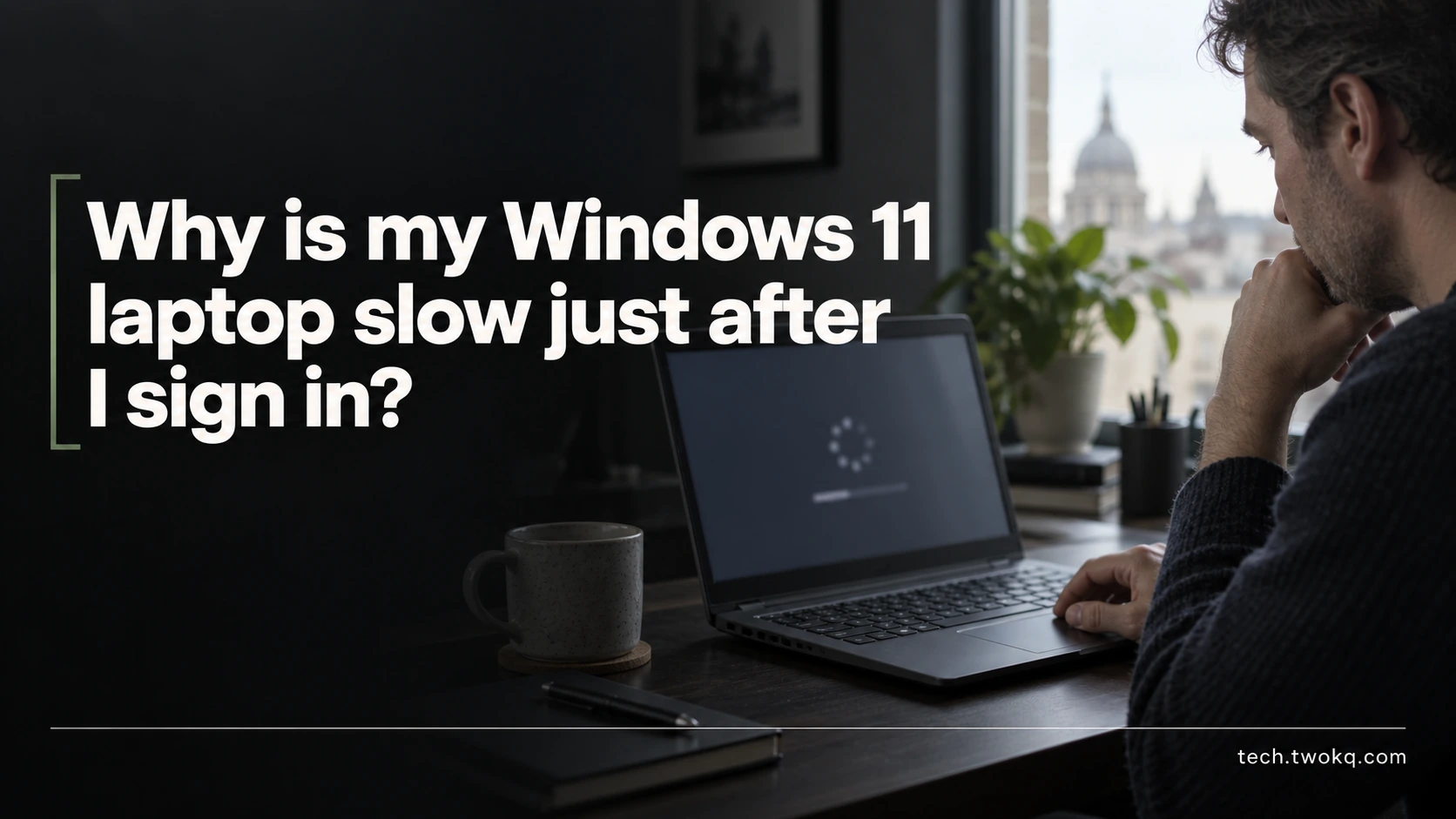
Find out what delays your Windows 11 laptop after sign-in, measure a repeatable baseline and test reversible startup changes before paying for an upgrade.
Direct answer: First establish whether the delay disappears once sign-in activity finishes or continues during ordinary work. Open Task Manager, observe which recognised processes coincide with the delay, then test disabling one non-essential startup app and repeat the same task after a restart. Keep security, backup and required workplace software active. If the laptop stays slow after startup settles, or reports errors, investigate that continuing constraint rather than disabling more startup items.
The desktop appearing does not mean your laptop has finished preparing everything you use. Applications can launch, check services and open files while you are trying to begin work. Microsoft lists startup apps among several possible contributors to poor performance, alongside storage, software and hardware constraints in its Windows performance guidance.
However, a busy graph does not prove the process at the top is faulty. Useful work also consumes resources. The question is whether a particular activity delays the task you need and whether changing it improves the whole routine.
Applies to: Windows 11 using Microsoft's documented Settings and Task Manager controls, checked on 9 September 2026. These are documentation-based instructions, not results from testing your laptop. Managed devices may restrict changes.
Build a sign-in timeline
The sign-in timeline is an editorial diagnostic method. It records what happens between entering your account and completing a fixed first task, then compares that period with the laptop's behaviour later in the session.
Choose a simple local task you can repeat: open a particular saved document and type a sentence, for example. Avoid using a changing website as the only measure because network or service delays could dominate the result. Record the elapsed time from confirming sign-in until that task responds normally.
Also note the charger state, connected accessories and any visible update or synchronisation activity. You do not need laboratory precision, but you do need comparable conditions. A slow session after weeks offline and a normal restart five minutes later are not equivalent trials.
The parent guide, How to Get More From the Technology You Already Own, argues for a measured constraint before an upgrade. This timeline supplies evidence for one specific constraint: time lost immediately after signing in.
Prepare for a reversible investigation
Save your open work and make sure important files have a recoverable copy before changing software behaviour. Write down each setting you alter and its previous state. On a work or school laptop, ask the authorised support team about restricted or unfamiliar software rather than attempting to bypass management.
Do not remove antivirus, backup, accessibility or device-management software to make a test look faster. A quicker desktop is not an improvement if you lose a required safeguard or cannot use your assistive tools. Leave unrecognised processes alone until you can identify their publisher and purpose through trusted documentation.
Use a normal restart for comparisons and keep the same first task. Avoid installing optimisation utilities during diagnosis. Introducing another background application makes the change harder to interpret, especially when you already have the observations available in Windows.
Observe the delay before changing anything
Press Ctrl + Shift + Esc to open Task Manager. Microsoft's performance guidance identifies its Processes, Performance and Startup apps views as useful for understanding resource use. Look at processor, memory and disk activity while your chosen task is slow, then check again after the laptop becomes usable.
Record a process name only when its activity repeatedly overlaps the delay. A single moment at the top of a column is a clue, not a verdict. Distinguish your own observation from an assumption such as “the disk must be failing”.
Use this decision sequence:
- If the local task becomes responsive and stays responsive, focus on activity concentrated near sign-in.
- If the local task remains slow throughout the session, record the continuing workload and investigate beyond startup.
- If local work is responsive but an online application is slow, compare another required online task before treating the laptop itself as the cause.
- If there are crashes, missing files, unusual noise or explicit storage warnings, prioritise protecting data and obtaining appropriate support over timing further restarts.
Do not force every symptom into one explanation. For instance, an application can delay sign-in and still perform poorly later for a separate reason. Your timeline should retain that distinction.
Test one optional startup app
Open Start > Settings > Apps > Startup. Microsoft documents turning an app's toggle off to prevent automatic startup and on to restore it. Task Manager's Startup apps view provides the corresponding Enable and Disable controls and an impact indicator. Use the indicator to select a candidate, not to prove the whole cause. See Microsoft's startup-app instructions.
Choose an application you recognise and do not need immediately, such as an optional personal media launcher. Record the current setting, turn off its startup entry and restart after saving work. Repeat the same local task and note what changed.
Success means the required task becomes usable sooner without losing a function you need. Open the optional application manually later and include any resulting wait in your assessment. You may have moved the delay rather than removed it, which can still be useful if it no longer blocks the start of your day.
If there is no meaningful improvement over comparable sessions, restore the original toggle before testing another candidate. Reversal keeps the experiment interpretable. If the app is not listed, consult its own documentation or support; do not begin editing the Windows registry to chase a routine startup delay.
Separate deferred work from a persistent constraint
When the slowdown continues, record the exact task that remains slow and the conditions under which it occurs. Does it happen with one document or all documents? With the browser closed or only after many tabs open? On mains power and battery alike? These comparisons narrow the question without changing multiple settings.
Check for a pending update through Start > Settings > Windows Update > Check for updates, as documented by Microsoft. Allow required installation and restart work to complete before taking another baseline. Do not stop an update merely because its resource use is visible.
If a recognised sync or backup application remains busy, inspect its own status and error information. Record whether it is completing a known backlog or repeatedly failing. Keep protection active while resolving the cause. A stalled operation requires different attention from one finishing legitimate work.
My recommendation is to spend one focused session on reversible diagnosis before considering replacement hardware. The strongest case for an upgrade is a continuing limitation in essential work after sensible configuration, not a startup-impact label. If the device is unreliable or no longer supported for required software, that changes the decision and may justify professional assessment sooner.
Read timing improvements honestly
Imagine a student times opening a local essay after signing in. These are illustrative observations, not measurements made for this article. Five baseline sessions take 118, 124, 120, 131 and 127 seconds. The average is:
(118 + 124 + 120 + 131 + 127) ÷ 5 = 620 ÷ 5 = 124 seconds
After disabling one optional startup application, five comparable sessions take 82, 89, 85, 88 and 86 seconds:
(82 + 89 + 85 + 88 + 86) ÷ 5 = 430 ÷ 5 = 86 seconds
The apparent reduction is 124 − 86 = 38 seconds per sign-in. At 20 sign-ins monthly, that is 38 × 20 = 760 seconds, or 12 minutes 40 seconds.
Now include an illustrative 25 minutes spent investigating and another 30 seconds to open the deferred app on four occasions: 4 × 30 = 120 seconds, or 2 minutes monthly. The ongoing capacity released is 10 minutes 40 seconds monthly under these assumptions. Setup would take roughly 25 ÷ 10.67 = 2.3 months to recover in time.
That may still be worthwhile because interruption at the start of work is irritating. It is not a cash saving or evidence that every laptop will improve similarly. Look at the spread as well as the average; a single unusually slow update day should remain explained in your notes.
Make the next decision over two days
- Today, allow 20 to 30 minutes to record the symptom, inspect Task Manager and select one safe startup change. Stop if data reliability or unfamiliar managed software is involved.
- Compare the same task over your next few normal sessions. Record changes in power, updates or workload instead of hiding inconvenient results.
- Tomorrow, keep the change only if the whole routine improves. Restore it if the benefit is unclear or a required function is delayed.
- If the continuing slowdown remains unexplained, give support the device model, Windows version, exact task and timeline. Ask for a diagnosis of that constraint before approving a replacement purchase.
Related guides
Frequently asked questions
Does a high startup-impact label mean I should remove the app?
No. It identifies a candidate for investigation, not whether the application is necessary or defective. A tool that supports your work or access needs may justify its startup cost. Compare the timing of the delay with the application's activity, then decide whether it must start automatically. Disabling startup and uninstalling are different decisions. Preserve the application if you still use it, and test manual opening before considering removal. If the label is absent or not measured, that also does not prove the app is harmless; use the repeatable task and observations to assess the actual experience.
Should I restart repeatedly until I get a fast result?
No. Keep representative results, including inconvenient ones, and explain unusual conditions. Repeating immediately after a slow first session can change the workload because some pending activity has already completed. A single fast result then overstates the improvement. Compare several normal sign-ins with the same task and broadly similar conditions. You do not need to interrupt a working day to collect dozens of trials. If the symptom is intermittent, note what distinguishes the bad sessions and give that evidence to support. Chasing the smallest possible number is less useful than understanding when the delay returns.
Can I end the busiest process in Task Manager?
Do not end an unfamiliar process simply because it is busy. First save work and establish what the process belongs to. For an ordinary application you recognise, closing it normally gives you a clearer, less disruptive comparison than forcefully ending it. Processes performing protection, backup or installation work need particular care. If an application is unresponsive, use its documented recovery advice and consider what unsaved work could be lost. Resource use is not itself misconduct. The exception is a situation covered by your organisation's incident-response instructions, where authorised support should direct the action.
What if only my browser is slow after sign-in?
Compare a local task and a known online task to identify the boundary. If local work responds promptly, record whether the browser itself opens slowly, a particular page loads slowly or interaction becomes slow after opening many tabs. Those are different problems. Avoid changing Windows startup broadly when the symptom is confined to one application or service. Try the browser's official troubleshooting guidance for the specific symptom, preserving important session information before resets. If multiple online applications are affected while local work remains normal, network conditions become a more relevant next investigation than a laptop hardware purchase.
Will adding memory fix the delay?
It might help a demonstrated memory constraint, but the symptom alone cannot justify the purchase. Establish whether essential work remains restricted after startup activity settles and whether the exact laptop supports the proposed upgrade. Some devices do not offer a practical memory upgrade, so consult the manufacturer's model-specific documentation before buying parts. Ask a technician to relate any recommendation to the measured task rather than a generic minimum. If the main delay comes from an optional application starting unnecessarily, more memory may be an expensive way to avoid making a simpler configuration decision.
Should I reset Windows if startup changes do not help?
Not as the automatic next step. A reset can require significant recovery and application setup, while leaving an underlying hardware or workload problem unresolved. First preserve your files and recovery information, collect the exact symptom and seek the next targeted diagnostic step. If qualified support recommends a reset, establish which files and applications will be affected and how you will verify recovery before proceeding. The timeline should travel with the support request. Failure of one reversible experiment is evidence that its candidate was insufficient, not proof that the entire operating system needs replacing.
Sources and verification
- Microsoft: tips to improve PC performance in Windows, checked on 9 September 2026 for Windows 11 performance contributors, Task Manager access and Windows Update instructions.
- Microsoft: configure startup applications in Windows, checked for Settings and Task Manager controls, reversal and startup-impact information.
- Timing figures are illustrative assumptions, not recorded hardware tests. The supplied parent-guide text was read locally; its public category URL could not be retrieved during verification, so its supplied editorial path is retained.
This article is practical guidance. Apply it in proportion to your tools, evidence, risks, and responsibilities.