Diagnose changed Word pagination by comparing fonts, application versions and page settings, then choose a reliable editable file or fixed-layout PDF.
Direct answer: The two computers may be using different fonts, Word versions, compatibility settings or page dimensions to lay out the same content. Compare an unchanged copy on both machines, starting with the first place where line wrapping differs, before adjusting paragraphs or margins. For a document that only needs reading or printing, export and inspect a PDF; for continued editing, fix the environmental mismatch and keep the Word original.
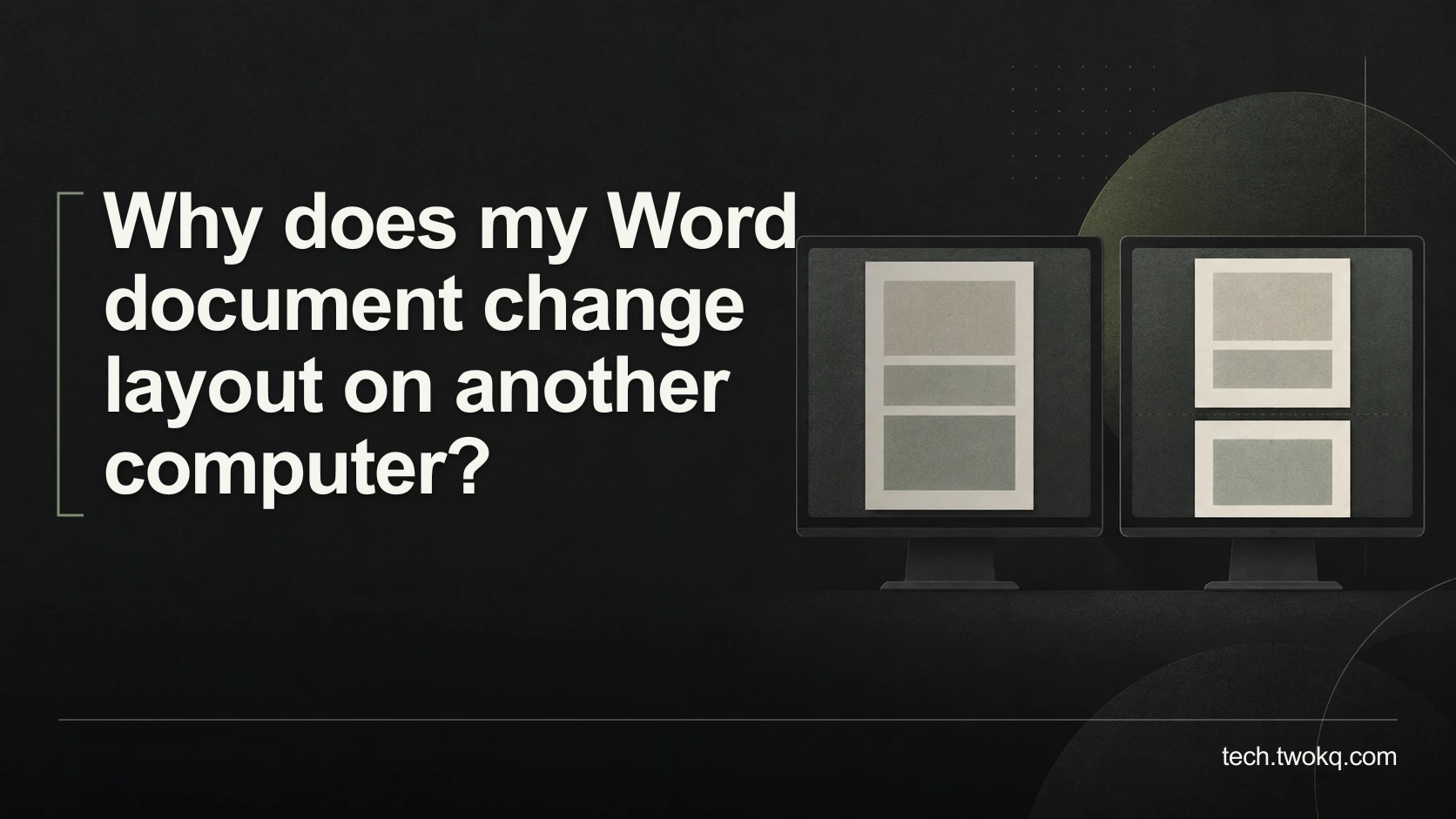
A page break is an outcome of many layout decisions, not a permanent property of the words above it. If a substituted font makes each line slightly wider, a paragraph can gain a line and push everything that follows onto later pages.
The tempting response is to shrink the text until the page count looks right. That can hide the cause and make the original computer display an unnecessarily cramped version. The goal is a dependable handover, not matching a page count at any cost.
Applies to: desktop Word, including Microsoft 365, with Windows and Mac differences identified where relevant. The method is documentation-based. Browser editors and alternative office applications require separate comparison with their own supported features.
Make a document environment match
The document environment match is an editorial troubleshooting method. You compare the file, its layout inputs and the rendering application before changing content. It narrows the broader principle of improving the technology you already own to one reproducible document problem.
First preserve the original. Save a separate diagnostic copy and, on the computer where it looks correct, export a reference PDF. Do not overwrite a shared master while experimenting, and do not convert a collaborator's file without agreeing who owns the new version.
Ask the recipient for the exact application name and version, operating system, file extension and whether the issue occurs on screen, in print preview or only on paper. A screenshot of the same paragraph is useful. A screenshot of an unrelated page is not.
Confirm both people have the same saved revision. If one has an email attachment and another has an evolving cloud document, apparently different layout may simply mean different content.
Start at the first changed line
Find the earliest point where the reference and recipient copies diverge. If a line ends with a different word, inspect its font and size before looking at the end of the document. If the text wraps identically but starts lower on the page, investigate margins, paragraph spacing and headers.
Compare the actual font family used for body text, headings and symbols. A family name in a style does not establish that the other computer has that font available. Microsoft documents how cross-platform font naming can lead to substitution in Office rendering problems.
Avoid downloading an unfamiliar font from a random search result. Obtain it from its legitimate supplier or your organisation's approved library, respecting its licence. If the font cannot be distributed or installed on the receiving computer, agree a substitute and review the whole document with that substitute applied deliberately.
Look beyond ordinary letters. A missing symbol font can affect bullets, mathematical notation or special characters even if most paragraphs appear unchanged. Check those elements against their intended meaning, not just their visual width.
Choose font embedding carefully
For supported desktop Word configurations, Microsoft documents font embedding through File > Options > Save on Windows. Enable Embed fonts in the file for the working copy when the font permits it. Microsoft also notes that embedding only used characters restricts subsequent editing with that font. See its font-embedding guidance.
Embedding is not a universal repair. Font creators can restrict embedding, and file size can grow. Test the saved file on the receiving computer rather than treating a checked box as proof. If the recipient must add new material, verify that newly typed characters render correctly too.
To reverse the experiment, return to the preserved copy or remove the embedding setting and save a separate version. Keep the known-good reference until the recipient has confirmed both appearance and editability. Do not silently replace a licensed typeface across an established organisation template.
Match application and page settings
Next compare whether both copies are in the same compatibility mode. Converting an older document changes its compatibility settings and can change layout, as Microsoft explains in converting documents to a newer format. Conversion belongs on a copy followed by inspection, not as an automatic first fix.
Record paper size explicitly. A4 and US Letter are different page shapes, so an international handover must specify which one is intended. Compare orientation and margins in the document, then inspect the recipient's print settings for scaling or a different paper selection. If the screen version matches but the paper output does not, focus on that print path.
Do not assume that a browser-based preview, desktop Word and another word processor will render every complex element identically. If the recipient needs to edit a layout-sensitive document, agree one supported editing environment and test representative pages there.
Avoid attempting to repair environment differences with repeated spaces, empty paragraphs or manual page breaks. Those changes attach the fix to the current rendering conditions and can create fresh errors when someone edits a heading. Change underlying styles only after the environmental comparison identifies a genuine design problem.
Work through the cost of a layout mismatch
Imagine a training coordinator has a 12-page handout that becomes 14 pages on a colleague's computer. All numbers here are illustrative. The coordinator finds three substituted font families in the diagnostic copy and restores the intended, permitted fonts. A new comparison returns the document to 12 pages without removing content.
For 40 copies, the unexplained increase would have produced 2 extra pages × 40 copies = 80 extra printed sides. At an assumed internal charge of £0.06 per side, that is 80 × £0.06 = £4.80. The hypothetical charge is not a commercial printing quote.
The more significant consequence may be broken references: instructions that say “complete the exercise on page 8” could now point elsewhere. Allow 15 minutes to inspect the changed sections and five minutes to produce and check the final PDF. That 20-minute verification effort is real work even if printing costs fall.
The example does not establish that font substitution always adds pages or that embedding saves money. It shows why checking the cause can preserve both meaning and layout. If the document has changed content intentionally, restoring the old page count would be the wrong objective.
Prefer PDF when editing is not required
My recommendation is to send a checked PDF for final reading or printing and keep the Word file as the editable source. Microsoft describes PDF as preserving document formatting in its Office PDF guidance. Export is still a step to verify, especially for tables, links, symbols and accessibility.
If someone must revise the document, supply the Word file and the PDF reference, identifying which is authoritative for edits. Do not imply that the PDF removes the need to check reading order or makes every document accessible. A fixed layout and an accessible document are related but different requirements.
Resolve the handover in one review session
- Spend five minutes preserving the original and confirming the two copies are the same revision.
- Use ten minutes to compare the first divergence, fonts and page settings.
- Test one justified change on a copy, then inspect the affected pages and final page count.
- Allow another ten minutes for the recipient to check the exported or editable deliverable. Stop ad hoc fixes if the mismatch persists across matched settings; send the minimal problematic example to qualified document support.
Related guides
Frequently asked questions
Does the same font name mean the computers use the same font?
Not necessarily. The displayed name is only part of the evidence, particularly when moving between platforms or using a template created elsewhere. Check the legitimate font source and the recipient's available font rather than assuming a matching label settles the issue. Compare the exact paragraph where wrapping first changes, including symbols and bold or italic variants. If your organisation manages fonts, ask its administrator to verify the installation. Do not redistribute font files without permission merely to make a page count match; a documented substitute may be the appropriate solution.
Should I use a smaller font to bring the document back to its original length?
Only when a deliberate redesign is appropriate, not as the first response to an unexplained change. Shrinking the font can reduce readability and conceal the fact that the recipient is using different layout inputs. Establish whether both computers have the same revision, intended fonts and page dimensions first. If the content has genuinely grown and a length limit remains, edit or redesign it transparently. Review readability at normal viewing size and on the intended paper, particularly for readers who need larger text, rather than optimising solely for a target page count.
Is sending a PDF enough to guarantee accessibility?
No. Preserving the visual appearance does not by itself establish that headings, reading order, links and alternative text work for someone using assistive technology. Review those requirements separately in the source and exported file. Avoid treating a screenshot of every page as an equivalent replacement for accessible text. Ask what the recipient needs: a printable reference, a reflowable reading experience or an editable document may require different deliverables. If you must meet a formal accessibility requirement, use the applicable organisational standard and a competent review rather than assuming a successful export proves compliance.
Why does a document match on screen but print differently?
That points towards the printing route rather than an immediate need to change the document's text. Compare the chosen paper size, orientation and scaling, and confirm the printer is using the intended tray and paper. Examine print preview before producing another full batch. Use one representative page containing the affected margin, table or footer for a controlled test. If two machines send apparently identical settings but produce different output, record the printer model and driver details for support. Do not repeatedly alter the shared master to compensate for one unexplained print configuration.
Can I convert an older Word file to fix the problem?
Conversion can be useful, but it changes compatibility behaviour and should be tested on a copy. It is not proof that the resulting layout will be closer to the intended design. Preserve the original, export a reference where it looks correct, and inspect the converted version for tables, numbering, text boxes and page breaks. Confirm that everyone who must edit the document can use the chosen format. If conversion changes something important, return to the preserved original while you decide whether to retain compatibility or undertake a deliberate, reviewed update of the document.
What should I send to support if none of these checks works?
Send the smallest non-confidential example that reproduces the difference, the application and operating-system versions, and images of the same affected passage on both computers. State whether it changes on opening, saving, exporting or printing. Include the intended paper size and font information, but do not attach a confidential full document to a public forum. A synthetic copy that preserves the troublesome formatting is preferable when it reproduces the issue. Keep the untouched original privately so that further experiments do not erase the evidence or become the only surviving version of your work.
Sources and verification
- Microsoft: font embedding, checked 11 September 2026 for controls, editing restrictions and font permissions.
- Microsoft: Office rendering issues, consulted for cross-platform font substitution, not as proof that every current Word version has the historical issue described.
- Microsoft: document conversion and PDF export, checked for compatibility and fixed-format behaviour.
- The parent guide was read from the supplied website source; its public route could not be retrieved. No hands-on cross-computer test is claimed.
This article is practical guidance. Apply it in proportion to your tools, evidence, risks, and responsibilities.