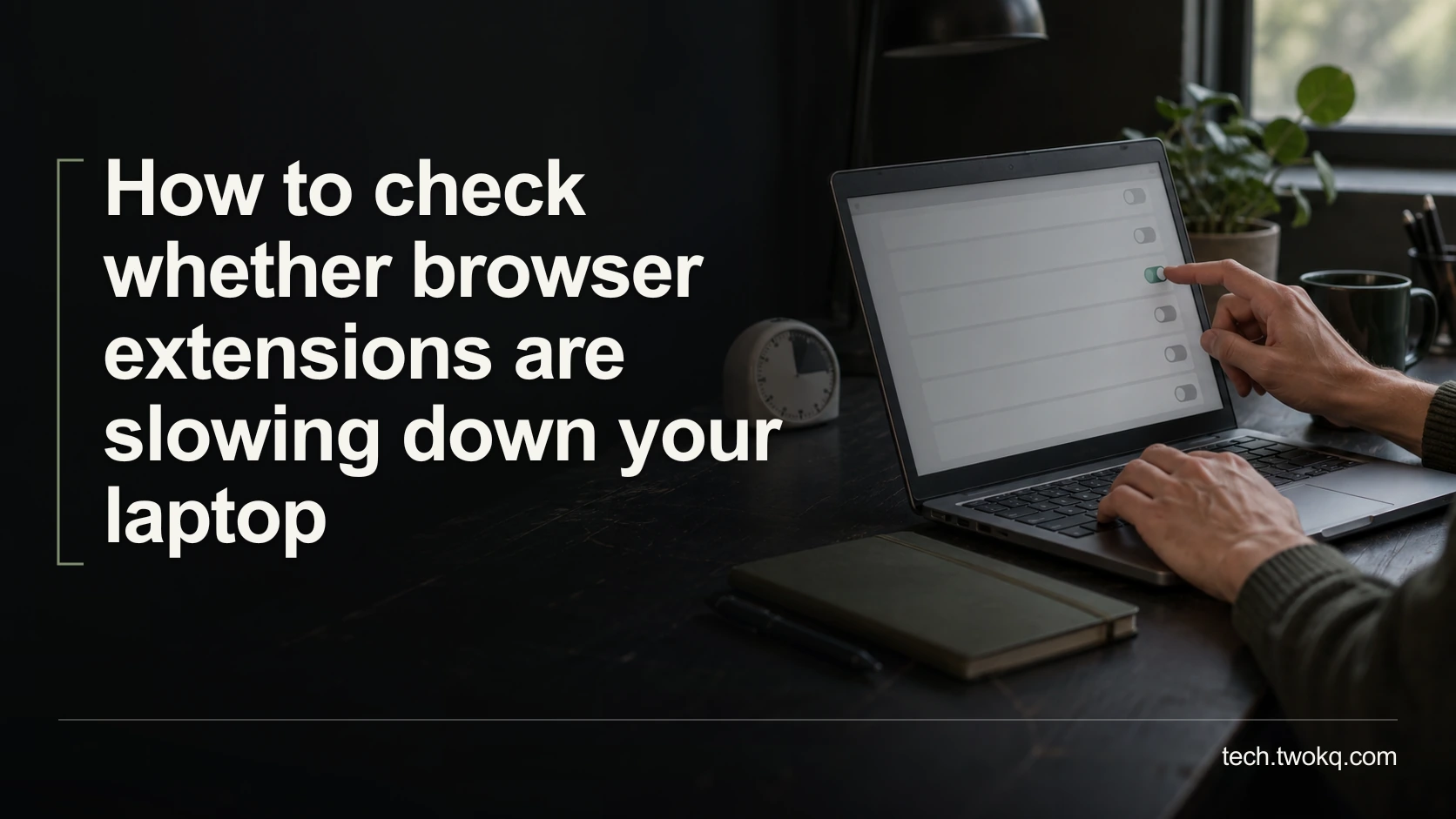
Find out whether an optional browser extension causes slowdowns with a repeatable timing test, reversible changes and a clear rule for keeping or removing it.
Direct answer: Time one browsing task with your normal extensions, repeat it with one optional extension disabled, then restore that extension and check whether the slowdown returns. Keep tabs, network, power supply and background work as consistent as possible. A repeatable change in the task matters more than a single memory reading; do not disable required security or accessibility tools to chase a faster result.
A browser that feels slow does not prove that an extension is responsible. The website might be waiting for its server, a video call might be competing for resources, or the laptop might struggle even when the browser is closed. Removing everything at once can conceal the cause while disrupting useful work.
The better question is whether a particular extension adds enough delay to your actual task to justify changing it. That is a narrower application of getting more from the technology you already own.
Applies to: desktop Google Chrome on a personally managed computer. The comparison method also suits other browsers, but their extension controls differ. Instructions below are documentation-based, not a recorded performance test.
Use the extension isolation run
The extension isolation run is an editorial diagnostic method: reproduce a symptom, change one optional extension, and look for a reversible difference. It is not a browser benchmark or a guarantee of causation.
Start with a task that you recognise as slow. For example, open the same three public reference pages, switch between them, and enter a sentence in a disposable document. Define completion before timing: the pages must respond to scrolling and the typed sentence must appear without a noticeable backlog. Merely displaying a tab title is not the same as being ready to work.
Use public or synthetic information for the exercise. There is no need to visit banking, customer or confidential pages while changing the browser environment. Save unsent messages and unfinished forms first. Write down which extensions are enabled so you can restore the original state.
Leave password managers, organisation-required protection and accessibility support alone unless an authorised support person has a safe alternative. An extension that makes the browser usable with your assistive technology cannot be judged on loading time alone.
Establish what is actually slow
Before changing extensions, try a simple local task outside the browser, such as opening an existing plain-text document. If that also stalls, extension testing may be the wrong first investigation. Record whether the delay affects the whole laptop, one website or only a particular action within that website.
In Chrome, Google's documented route to the browser task manager is More > More tools > Task manager. It can show resource-consuming tasks, including entries labelled as extensions. Use it to choose what to investigate, not as a verdict on whether an extension is unnecessary. Google's Chrome performance guidance also documents turning extensions off through More > Extensions > Manage extensions.
Do not end a process containing unsaved work simply because it is at the top of the list. A busy spreadsheet may be doing work you requested. High memory use without delay is different from repeated stalls that prevent completion.
Choose an optional candidate with a plausible connection to the symptom. A page-formatting extension is a reasonable candidate when pages pause during rendering. An extension you never use is also worth investigating, but unfamiliarity alone is not evidence that it is malicious.
Keep the comparison fair
Close unrelated tabs and finish downloads before the first run. Keep the laptop connected to the same power source and network. Do not update the browser, clear its cache or change a performance setting between the two conditions. Those changes would make the result difficult to interpret.
Run the task once to confirm it is reproducible. If a page intermittently fails because its service is unavailable, choose another stable task or postpone the comparison. You cannot diagnose a local extension reliably while the website itself is changing behaviour.
Then use this sequence:
- Run the defined task three times with the original setup, recording completion time and any functional failures.
- Disable just the selected optional extension. Restart Chrome after saving work so both conditions begin with comparable browser sessions.
- Repeat the same task three times. Record any feature that disappeared as well as the times.
- Restore the extension and perform a confirmation run. Check whether the original symptom returns.
The three-run groups are a practical starting point, not a statistical standard. If the results vary widely, collect more observations at comparable times. A small apparent gain that disappears when repeated is not grounds for a confident recommendation.
Interpret a worked example
Assume, illustratively, that a student times the same research-page opening task. These are invented figures for explaining the calculation, not results from a tested extension.
| Configuration | Three completion times | Median | Functional result |
|---|---|---|---|
| Original setup | 22, 24, 23 seconds | 23 seconds | Task completes |
| One optional extension disabled | 15, 16, 18 seconds | 16 seconds | Task completes, annotation shortcut absent |
The median is the middle value after sorting each group. The apparent saving is 23 − 16 = 7 seconds per task, about 7 ÷ 23 × 100 = 30% of this particular baseline. It is not evidence that the entire laptop is 30% faster.
If the student does this task 20 times a day, the illustrative gain is 20 × 7 = 140 seconds, or 2 minutes 20 seconds. But replacing the missing annotation shortcut takes three extra minutes daily. On those assumptions, disabling the extension increases total effort by 40 seconds. The faster page load does not justify the change.
A confirmation run with the extension restored should bring back the relevant delay before attributing it to that extension. Even then, the decision concerns the whole workflow. These minutes are time released or consumed, not cash saved, unless actual paid expenditure changes.
Decide what to keep
My default recommendation is to keep a useful extension if its repeatable delay is smaller than the work it removes. Disable an unused optional extension when doing so improves the defined task without losing a needed capability. Uninstall only after confirming you do not need its stored information or settings.
If the extension is necessary and costly in time, inspect its own documented options for running on fewer sites. Do not guess that a permission change is available in every extension. Record the extension version and a synthetic reproduction, then report the issue to its publisher or your support team.
If none of the optional candidates changes the result, restore the original setup. Move to browser, website or system diagnosis with the evidence you collected. Repeatedly stripping away unrelated features will not make an inconclusive test stronger.
Spend the next half-hour on one candidate
- In the first five minutes, save work, record enabled extensions and define one public-page task.
- Allow about fifteen minutes for the original and changed runs, including comparable browser restarts.
- Use the final ten minutes to restore the extension, confirm the symptom and compare the full workflow cost.
- Keep, disable or escalate that one candidate. Stop the experiment if it removes necessary protection, blocks accessibility or cannot reproduce the original delay.
Related guides
Frequently asked questions
Does using a lot of memory prove an extension is slowing my laptop?
No. Memory use is a clue that needs to be connected to an observable problem. An extension can retain useful information without causing your task to stall, while another task may be the actual constraint. Record the behaviour you care about, such as delayed typing or page interaction, and compare it with the extension enabled and disabled. Also record what the extension was doing at the time. If your laptop is slow across unrelated applications, investigate the wider workload before concluding that the browser's largest entry is the cause.
Can I use an incognito window instead of disabling one extension?
An incognito window can provide an initial comparison, but it is not an equivalent replacement for a controlled extension test. It may differ in login state, stored website information and permitted extensions, so several conditions change together. A website might also behave differently when you are signed out. Treat an improvement there as a reason to investigate the ordinary profile, not proof against a named extension. For a clearer answer, repeat the same task in the same profile with one optional extension changed and the original state restored afterwards.
What if two extensions only cause trouble when used together?
An interaction is possible, and testing each extension in isolation may not expose it. Once you have a repeatable symptom, compare the original pair with each optional member disabled separately, then record which combination removes the problem. Do not test dozens of combinations without a reason: start with extensions that affect the same page content or action. Keep a clear record so you can restore the original configuration. If a required work extension is involved, give the reproduction to your administrator rather than disabling it throughout your normal working day.
Should I install a browser cleaner to automate this?
Not for this diagnostic task. You already have the controls needed to make a reversible comparison, and installing another tool introduces another variable and potentially another set of permissions. A cleaner may remove data that changes website behaviour, making the original cause harder to establish. Use the browser's own extension management and your written timings first. If an organisation supplies an approved diagnostic tool, follow its documented process, but understand which data it collects and which settings it changes before applying it to your everyday browser profile.
Why does the browser feel faster after every restart?
A restart changes more than extension activity, so that observation does not identify the cause. It closes running pages and interrupts accumulated work, while the first task afterwards may differ from your normal session. Make both comparison conditions start in the same way, then reproduce the workload that becomes slow. Note how long the browser has been open when the problem returns. If the delay only appears after hours, a short page-opening test may be insufficient; collect a time-and-task record over a normal day instead of drawing a conclusion from startup alone.
How do I report the problem without sharing private browsing information?
Create a minimal reproduction using public pages or a synthetic document, and include only the browser version, extension version, relevant settings and steps needed to show the delay. Remove personal account names, tokens and confidential page titles from screenshots or logs before sharing them. Do not upload a complete browser profile to a public issue tracker. If the problem exists only on an internal company site, ask your support team to handle the report through an approved channel. A precise description of the symptom is often more useful than a large, unreviewed data dump.
Sources and verification
- Google Chrome Help: speed up Google Chrome, checked 11 September 2026 for the extension-management and browser task-manager routes. Timings above are illustrative, not measured results.
- The assigned parent guide was read from the supplied website source. Its public route could not be retrieved during verification; the supplied canonical path is retained.
This article is practical guidance. Apply it in proportion to your tools, evidence, risks, and responsibilities.