Identify whether microphone selection or Bluetooth call mode is degrading your sound, test an existing alternative and check LE Audio support before buying.
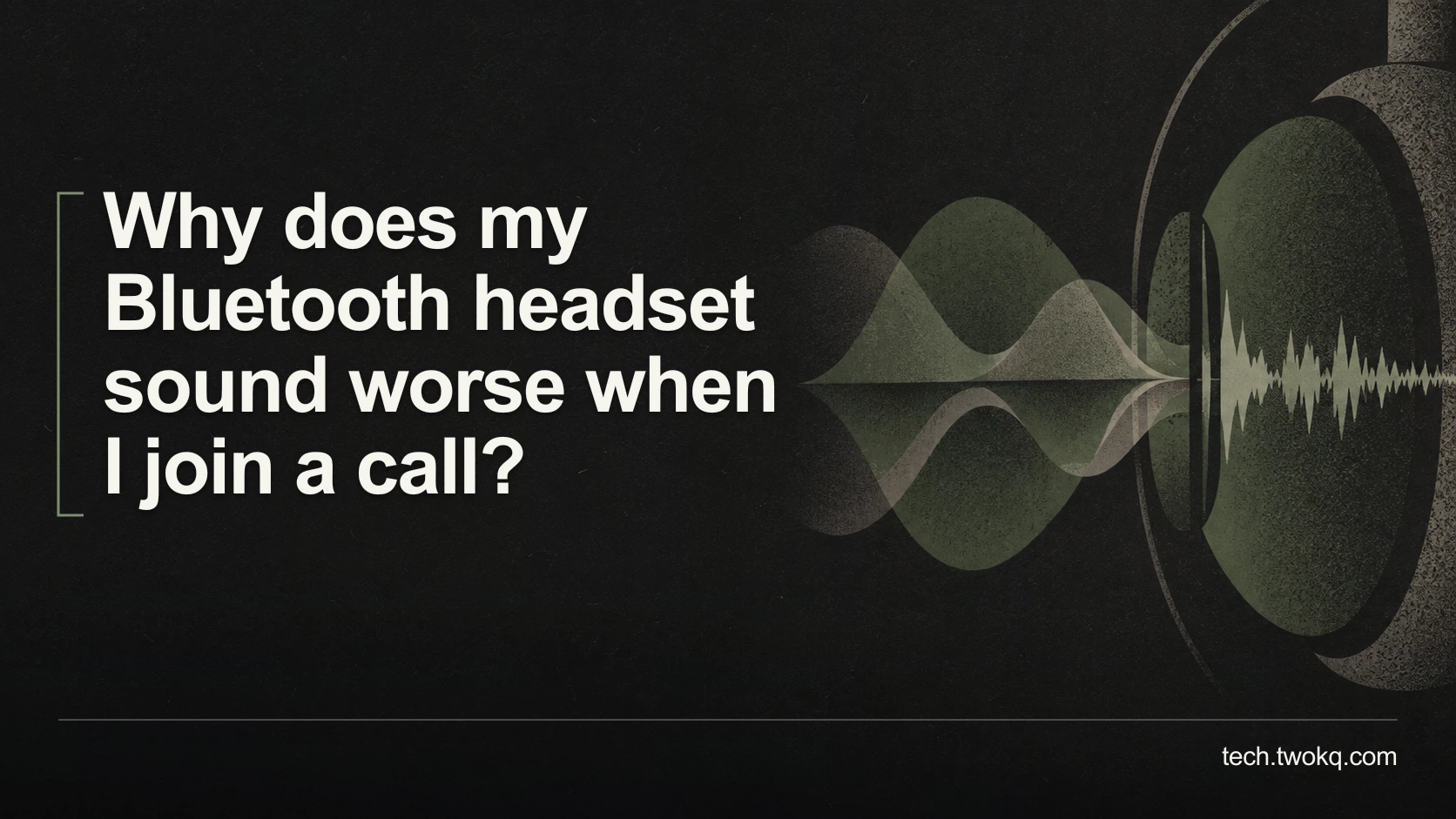
Direct answer: A call can activate your headset microphone and switch a Bluetooth Classic connection from stereo playback to a lower-fidelity two-way call mode. Check which microphone the call app selects, then compare the headset with your laptop's existing microphone as the input. Compatible Bluetooth LE Audio setups can behave differently, so verify the laptop, headset, drivers and Windows version before assuming every Bluetooth device has the same limitation.
Good music playback does not prove that the same connection will provide equally good sound while sending your voice. Listening and two-way conversation place different demands on the audio path. The call app may also select a different input from the one you expected.
The useful outcome is intelligible, reliable conversation for both people, not simply restoring impressive music playback while leaving the other person unable to hear you. Diagnose that complete path before buying another headset.
Applies to: Windows 11 laptops and Bluetooth headsets. The general comparison is useful elsewhere, but the LE Audio settings and requirements below are Windows-specific and documentation-based.
Use the call-audio path check
The call-audio path check is an editorial diagnostic method that follows playback, microphone selection and the active call connection separately. It applies getting more from existing technology to a single frustrating symptom.
Before testing, finish any real call and note the current speaker and microphone selections. Use a private test with a consenting colleague or a local microphone test, not a customer conversation. Do not record someone without the permission and organisational approval relevant to your situation.
Keep the laptop and headset in the same position for each comparison. Use the same ordinary sentence and comfortable volume. Loudness alone is not clarity, and turning playback up can hide rather than explain a problem.
Write down whether the change affects what you hear, what the other person hears or both. Those are distinct faults. A complaint that “the audio is bad” is too broad to guide a purchase.
Understand the mode change without overgeneralising
Microsoft documents that Bluetooth Classic uses the Advanced Audio Distribution Profile, or A2DP, for stereo playback and the Hands-Free Profile, or HFP, for mono playback and microphone capture. A profile is the set of functions used for that connection. See Microsoft's Bluetooth Classic documentation.
That explains a common pattern: music sounds normal, joining a call changes it, and ending microphone use restores it. It does not establish that every crackle or dropout is a profile limitation. If playback is also broken outside calls, widen the diagnosis to connection reliability, device condition and the application's output.
There is also an important exception. Microsoft documents stereo playback while a microphone is active on compatible LE Audio systems with Windows 11 version 24H2 or newer, build 26100.4484 or later, suitable factory-integrated support and updated manufacturer drivers. Both ends must support the required functionality. The LE Audio quality guidance sets out these conditions; a Bluetooth version number on a box is not sufficient proof.
Check the input before changing hardware
In Windows, open Settings > System > Sound and inspect Input. Microsoft documents selecting a microphone and testing it in setting up and testing microphones. Check the call application's own audio selection as well, because the relevant choice is the one the call actually uses.
First reproduce the issue with the headset providing both playback and microphone input. Note the change on entering and leaving the test call. Then select the laptop's built-in microphone in the app, while leaving the headset as the output, if your app permits separate selection.
Repeat the same sentence. Check that the chosen microphone really receives it and that the listener can understand it. An input meter moving is helpful, but the person at the other end must not be hearing keyboard noise instead of usable speech.
If the alternative improves playback but makes your voice too distant, it is not a successful configuration. Try the laptop in your normal desk position, not an artificial position you cannot maintain while working. Restore the original selection after testing if the alternative fails.
Compare what you already have
Use the options available to you rather than buying equipment to populate a test. A wired headset can provide a useful comparison if one is already compatible with the laptop. A dedicated USB accessory is another possibility, but its suitability must be verified rather than assumed from the connector.
| Configuration | What to inspect | Condition for keeping it |
|---|---|---|
| Bluetooth headset for input and output | Does the call trigger the specific drop in quality? | Both participants can understand speech reliably |
| Bluetooth output plus laptop microphone | Is your voice clear at normal desk distance? | Playback and outgoing speech both meet the task |
| Existing compatible wired headset | Does the fault remain without that Bluetooth path? | It works without introducing cable or comfort problems |
| Verified compatible LE Audio setup | Do the documented device and driver conditions hold? | Actual call behaviour is acceptable, not merely the specification |
A separate microphone is not automatically more professional. If it captures a noisy room, the integrated headset microphone may remain the better choice even with reduced playback fidelity. Evaluate the real environment.
Check LE Audio support only where relevant
Microsoft's documented check is Settings > Bluetooth & devices > Devices, then look for Use LE Audio when available. Its absence means the current setup does not offer that support, which can involve hardware or drivers. See checking Windows LE Audio support.
Consult the manufacturer for the exact laptop and headset combination. Use only approved driver or firmware updates and retain the current working configuration until you can test safely. Do not disable protection, install a mystery driver package or assume an inexpensive adapter supplies missing audio capabilities.
If stereo call playback is not essential, a stable existing configuration may be enough. There is no need to rebuild a functioning call setup solely to gain a feature label.
Work out whether an accessory is justified
Assume a remote tutor compares four configurations over short, synthetic call tests: the current headset path, built-in microphone with Bluetooth output, an owned wired headset and a proposed compatible USB microphone. These are planning assumptions, not measured device results.
The existing microphone and wired options cost £0 in additional hardware. Suppose the proposed microphone costs an illustrative £45, with 20 minutes to configure and 10 minutes to check. At an assigned time value of £18 per hour, setup and checking cost 30 ÷ 60 × £18 = £9 in time value. The combined comparison is £45 + £9 = £54.
If an owned headset already meets the teaching requirement, that £54 buys convenience or preference, not a necessary repair. If none of the existing options provides intelligible speech and the proposed microphone passes a returnable trial, paying may be reasonable.
Do not describe the 30 minutes as cash paid unless someone is actually paid for that work. Include continuing practical costs too: desk space, connecting the device and keeping it positioned correctly. The least expensive specification is not necessarily the least troublesome working setup.
Make one reversible change before the next call
My default is to test separate input using equipment you own before purchasing anything. Keep the original headset path if it is the most reliable way for both people to understand each other. Upgrade only for a specific unmet requirement.
- Allow five minutes to record the current selections and reproduce the change with non-sensitive speech.
- Spend ten minutes comparing one existing alternative at your normal desk position.
- Check relevant manufacturer compatibility information if a feature-dependent purchase remains necessary.
- Confirm the chosen settings immediately before the next real call. Stop experimenting during consequential calls and return to the last working configuration if speech becomes unclear.
Related guides
Frequently asked questions
Why does pressing mute sometimes fail to restore the old sound?
Muting your voice is not necessarily the same as the application releasing the microphone connection. The call may retain its audio configuration while you are muted, so do not use the mute button as your only diagnostic. Compare the state before the call, during it and after leaving it, then test a different selected input if the app permits that. Check actual behaviour rather than assuming the icon represents every part of the audio path. If the sound remains poor after the call ends, inspect whether another application is still using the microphone.
Will any newer Bluetooth adapter solve the problem?
No. The relevant capability depends on the full combination of operating system, audio hardware, drivers and headset, not simply a newer Bluetooth label. Establish the required supported configuration with the manufacturer before spending money. An adapter may address a connection fault in a particular setup without providing the call-audio feature you expected. Keep packaging and understand the return terms if you buy for a verified but untested combination. If the seller cannot explain compatibility beyond the headline Bluetooth number, use a known working wired or existing microphone option while you investigate further.
Is mono audio automatically unsuitable for meetings?
No. For an ordinary spoken meeting, intelligibility and reliable turn-taking may matter more than stereo playback. Judge whether you can distinguish words comfortably and whether others hear you clearly, including quiet speakers. A different requirement, such as reviewing a stereo mix or using a spatial accessibility feature, can make stereo essential. State that requirement before choosing hardware. Do not assume better music reproduction proves better conversation quality, and do not accept missing words merely because the connection's behaviour is technically expected. The task determines what is acceptable, not the mode name alone.
Can the laptop microphone create privacy problems?
It can capture a different area from a microphone close to your mouth, so assess the room before using it. Keep private conversations and confidential material outside the test, and confirm that the call application is using the intended device. Follow workplace rules for meetings and recording; do not enable automatic recording just to compare microphones. A short test with your own synthetic speech is enough for an initial check. If you share a space, consider whether nearby speech becomes intelligible to the listener, even when your own voice sounds clear enough to use.
What if the headset works well on my phone but not my laptop?
That comparison narrows the investigation but does not prove the laptop is defective. The two hosts can use different audio configurations, drivers and application settings. Record the exact laptop and headset models, operating system and selected call input, then reproduce the problem with the same headset position and spoken material. Check the manufacturer's supported computer setup rather than transferring assumptions from the phone. If another existing headset works on the laptop, include that observation in a support request. Avoid buying an identical replacement before determining whether the difference is expected compatibility behaviour.
Should I change settings during an important live call?
Only use a known fallback if the current setup prevents communication. Experimental changes can select the wrong microphone, remove sound entirely or expose nearby conversation while you search for controls. Tell the other participants what is happening and switch to a previously checked option where available. Save deeper diagnosis for a short private test afterwards. Record the symptom and which devices were selected so the next session begins with evidence. If the call is consequential, reliability and consent take priority over improving playback quality while other people are waiting for you to continue.
Sources and verification
- Microsoft Learn: Bluetooth Classic Audio, checked 11 September 2026 for playback and microphone profile behaviour.
- Microsoft: LE Audio quality settings and LE Audio support checks, checked for exact compatibility conditions.
- Microsoft: microphone setup and testing, consulted for Windows controls. No headset was tested for this article.
- The parent was read from the supplied site source; its public route could not be retrieved.
This article is practical guidance. Apply it in proportion to your tools, evidence, risks, and responsibilities.