Separate a weak room connection from an internet-service problem, compare the same task in several locations, and test a free placement change before buying.
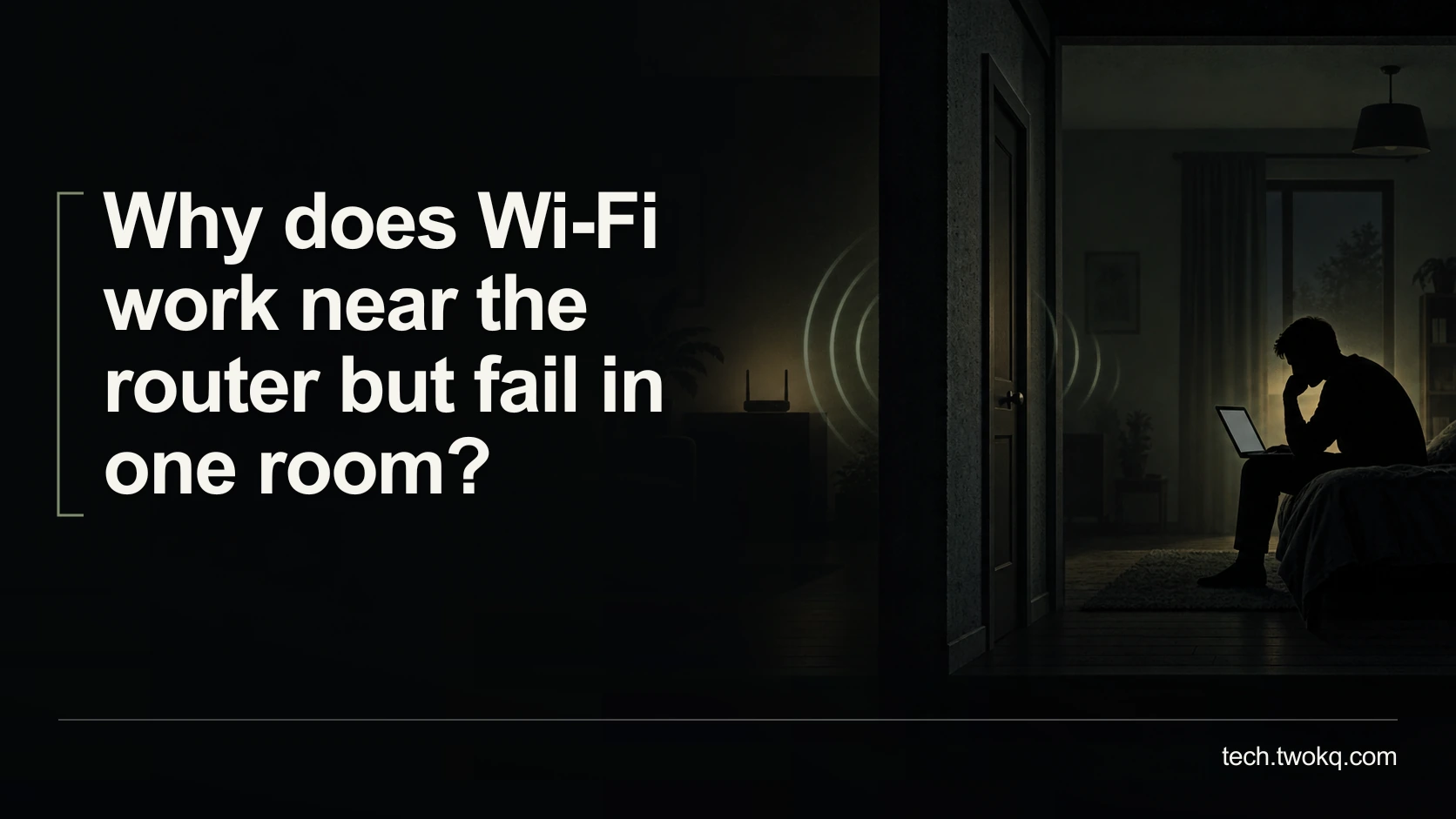
Direct answer: If the same device works reliably near the router but repeatedly fails in one room, investigate the wireless path, obstacles and local interference before upgrading your broadband package. Repeat one task in several locations, then make a safe, reversible placement change and repeat the failed test. If the task also fails near the router or over a known working wired connection, widen the investigation to the internet service, router or application.
Wi-Fi is the connection between your device and the local network; broadband is the service bringing internet access to that network. Improving one does not automatically repair the other. A faster contract cannot guarantee that a weak wireless signal reaches a back bedroom.
Likewise, a full-looking signal icon is not proof that a video call will work. You need evidence from the task and location where the problem occurs, not just a headline speed from another room.
Applies to: ordinary home networks, including UK broadband connections. Router controls and supported bands vary by model. The checks below are non-destructive and documentation-based, not measurements of a particular home.
Draw the room-by-room connection map
The room-by-room connection map is an editorial diagnostic method. You hold the device and task reasonably constant, vary location, then test one justified change. It helps you improve existing technology before adding hardware.
Write down the failing task: a call drops in the study, a page refuses to load in the kitchen, or an upload repeatedly stops upstairs. Note the time and whether other devices have similar problems there. Distinguish a complete disconnection from a connection that stays active but cannot complete the task.
Do not reset the router or change the network password for this initial test. Either can interrupt other people's work and create new setup problems. Ask household members about calls or downloads, and choose a short period when comparison will not disrupt essential use.
Use public pages or a harmless test file rather than uploading private documents to an unfamiliar speed-testing service. Keep the device on the same network and check that it has not silently switched to mobile data or another available connection.
Establish the near-router baseline
Start close to the router in a normal usable position, rather than balancing the laptop directly against it. Repeat the task and record whether it completes, the time if relevant and any interruption. Keep the application and file the same for the later room tests.
If an Ethernet connection is already available and appropriate, it can help separate wireless behaviour from the wider internet path. Ofcom recommends wired testing among its broadband improvement checks. Connect only equipment you are authorised to use, without creating a trip hazard.
Do not interpret one successful test as proof the internet service never has problems. Repeat near-router checks when the room failure occurs, if practical. A morning baseline and an evening failure can involve different service conditions and household use.
If the baseline itself fails, postpone the room diagnosis. Check the provider's service information and the exact application error, and compare a second ordinary internet task. A single website outage should not send you shopping for network hardware.
Compare locations with one device
Choose a small number of useful points: near the router, hallway, living room, home office and the failing room. Use the same device orientation and working position as far as practical. Test the actual desk if that is where you need the connection, not only the doorway.
Record the network name, approximate time, task result and interruptions. A repeatable pass near the door and failure at the desk is meaningful evidence about location. Different results on different devices also deserve attention, but do not change device and location together and call it a fair comparison.
Walls and obstacles affect coverage, while available frequency bands offer different trade-offs. Microsoft's Wi-Fi and home-layout guidance explains that 2.4 GHz generally has greater reach through obstacles than higher bands, but can be more congested. That is context for testing, not a guarantee that a particular band will solve your room.
Avoid changing channels, splitting network names and moving equipment all at once. If the provider manages your router, use its documented advice. You want to know which change helped and how to reverse it.
Try a safe placement change
Ofcom advises keeping a router in an open, elevated and reasonably central position where practical in its Wi-Fi experience guidance. A shelf may be a useful alternative to a floor-level corner or enclosed cabinet.
Only move it within the limits of safe power, ventilation and the provider's connection requirements. Do not pull on fibre leads, alter wall sockets or stretch cables across walkways. If relocating the connection point requires work, ask the provider or an appropriate installer rather than improvising.
Retest the failing task and the original baseline after the change. Then check the other rooms that matter. Improving one desk while making a partner's work area unreliable is not an unqualified success.
If the change makes things worse, return to the recorded position. Keep a short note of what happened. A failed free experiment can still save money by showing that simple relocation is insufficient.
Work through an illustrative room map
Imagine a flat where a harmless file upload completes in 18 seconds near the router, 21 seconds in the hallway, 24 seconds in the living room and 52 seconds in the study. In the bedroom it fails after a 90-second observation window. These are invented task measurements, not a broadband benchmark or recommended timeout.
Do not average the failure as though 90 seconds were its completion time. It did not complete. The useful result is four completed tests and one unresolved location failure.
Suppose a safe shelf move costs £0 and the study retest takes an illustrative 28 seconds, with the bedroom task now completing in 45 seconds. The study improvement is 52 − 28 = 24 seconds per upload. At eight uploads a day, that is 8 × 24 = 192 seconds, or 3 minutes 12 seconds of waiting avoided for this task.
Allow 20 minutes to move safely, retest and record the outcome. That is initial effort, not free time. It takes roughly 20 ÷ 3.2 = 6.25 working days to equal the study's illustrative daily waiting reduction, assuming the pattern persists. That does not capture the separate value of the bedroom becoming usable, and it does not turn waiting time into cash.
If relocation fails, compare a hypothetical £95 installed cable route with an actual quote for suitable wireless coverage equipment. The £95 is an illustrative assumption, not a market estimate. Decide based on what reaches the required room reliably, installation permission and maintenance, not an invented percentage improvement.
Decide whether additional hardware is needed
My default is to change placement and verify the need before buying a mesh system. Mesh can be appropriate for broader coverage, but it still needs suitable positioning and a working connection between its units. A fixed desk may be better served by a practical wired connection.
Before buying, identify the path that new hardware must improve. Ask where a wireless unit would receive a useful connection, whether wiring is permitted and who will configure and maintain the setup. Do not place an extender in the failing location merely because that is where the laptop lacks service and assume it will create a reliable upstream connection.
If the property belongs to someone else, obtain permission for installation work. If the network belongs to an employer, involve its support team. Improving coverage does not justify changing another person's infrastructure without authority.
Complete the first investigation in forty minutes
- Spend five minutes defining the task and recording current network and placement details.
- Allow fifteen minutes for the near-router baseline and room comparisons.
- Use a further fifteen minutes for one safe placement change and retesting the important locations.
- Record a keep, revert or investigate decision. Stop changing local settings if the baseline also fails; take the results to the provider or network owner before purchasing coverage hardware.
Related guides
Frequently asked questions
Would a faster broadband package fix the weak room?
Not if the limiting problem is the wireless connection inside the home. Compare the same device and task near the router and in the failing room before changing the contract. If performance is inadequate even over an appropriate wired connection and the service is functioning as specified, a different package may become relevant. But a higher advertised speed cannot establish that it reaches your desk over Wi-Fi. Separate the two decisions and ask the provider what evidence supports an upgrade. Otherwise you may pay more each month while the original room remains unreliable for exactly the same task.
Why does my phone work in the room when my laptop does not?
First check that the phone is actually using the same Wi-Fi network rather than mobile data. Then compare the task, location and time before attributing the difference to hardware. Devices can have different wireless capabilities and connection choices, so one success does not prove every device should behave identically. Test the laptop near the router and inspect its supported updates if the problem follows the laptop rather than the room. Do not buy a new router solely from the contrast between two different tasks on two differently connected devices without controlling those obvious differences.
Should I switch everything to 2.4 GHz?
Not as a universal fix. Its coverage characteristics may suit some distant devices, but congestion and the task's needs can change the answer. Test an available, supported configuration on the problem device rather than moving every household device at once. Record the original setup and follow the router provider's instructions if changing band behaviour. If your router manages bands under one name, do not assume that splitting names is required or harmless. The objective is reliable completion in the room, not allegiance to one frequency band across tasks that have different requirements and locations.
Can a Wi-Fi extender work if I put it in the dead room?
Only if its own connection to the network is usable in that position or it has an appropriate wired connection. A device cannot be assumed to solve an upstream wireless problem simply because you plug it in beside the struggling laptop. Check the manufacturer's placement guidance and test the connection through the unit in the intended position. A location between the router and the problem area may be relevant, but the exact layout matters. Do not purchase from a coverage claim alone; establish where the proposed equipment would receive and provide a dependable path for your actual task.
What if the problem appears only in the evening?
Collect comparisons during that period. A daytime test cannot separate evening household activity, local wireless congestion and provider-side conditions. Record the failing task near the router and in the room at roughly the same time, and note other known heavy activity without inspecting anyone's private browsing. If both locations worsen similarly, broaden the investigation beyond coverage. If only the room fails, local conditions remain a stronger candidate. Avoid repeatedly restarting the router without a record, since that can interrupt others and erase the opportunity to compare the failure under the conditions that actually produce it.
Do I need a network-analysis app for the first test?
Usually not. A written record of one task, the device, the location and the result can already distinguish a room-specific problem from a wider outage. An analysis tool may help a more detailed investigation, but inspect its permissions and understand what its measurements mean before relying on it. A colourful graph is not a substitute for checking whether the call or upload completes. Start with the equipment you own and the provider's documented diagnostics. If further evidence is needed, ask support which measurement would change its recommendation rather than collecting technical-looking numbers without a decision attached.
Sources and verification
- Ofcom: improving your Wi-Fi experience and broadband improvement checks, checked 11 September 2026 for local placement and wired comparison guidance.
- Microsoft: Wi-Fi and home layout, checked for band and obstacle trade-offs. No device-specific performance is inferred.
This article is practical guidance. Apply it in proportion to your tools, evidence, risks, and responsibilities.