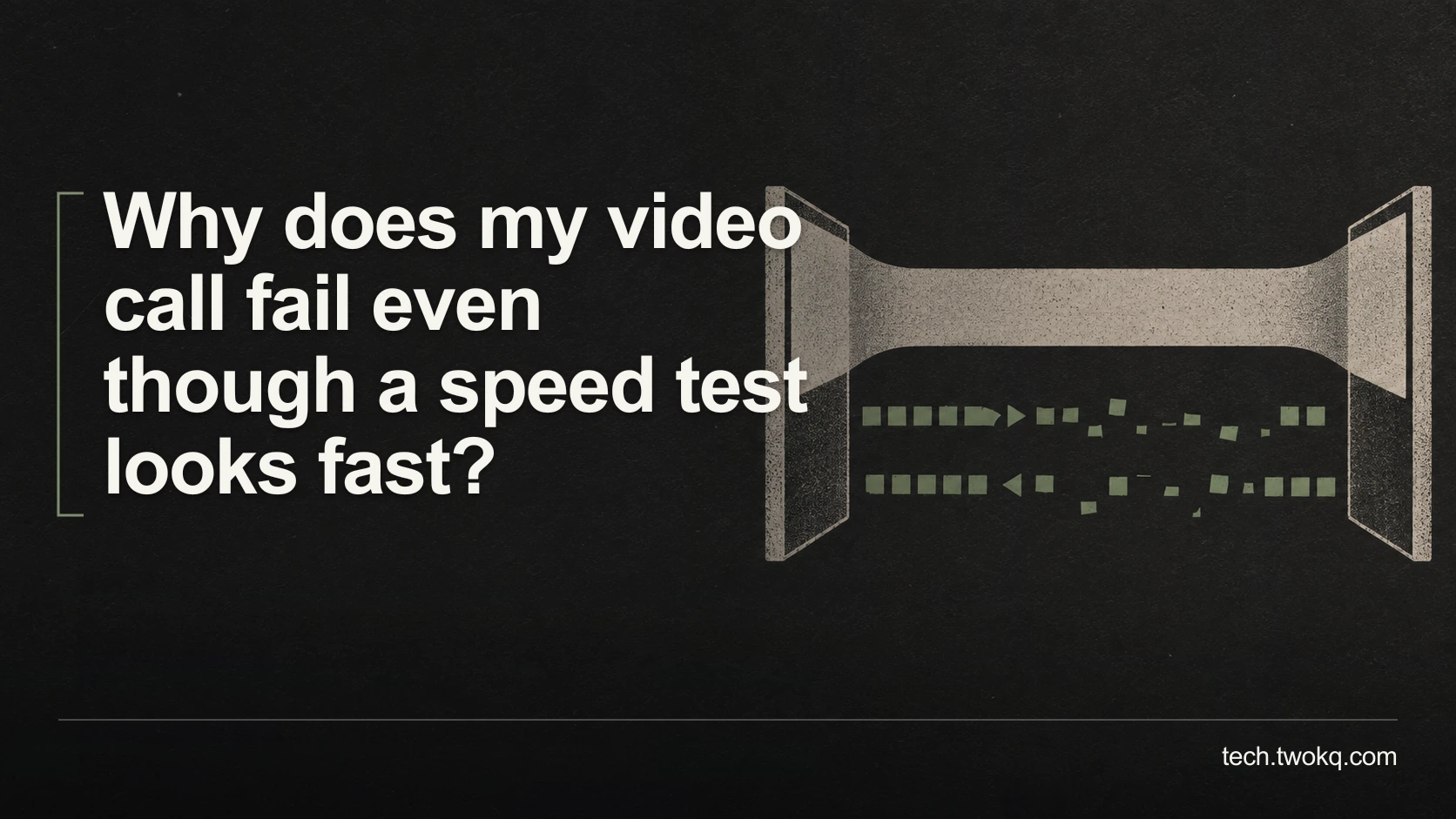
Find why a fast connection still produces broken calls by separating upload congestion, unstable packet delivery, Wi-Fi problems and an overloaded computer.
Direct answer: A speed test does not establish that your call receives steady, timely data in both directions or that your computer can process it. During a short test call, check the application's connection statistics, pause an approved non-essential upload, and compare the result on wired Ethernet or nearer the router. If the network evidence stays healthy while the computer struggles, investigate device load and call features before buying faster broadband.
The headline download figure answers a different question from whether another person can hear a complete sentence. A call can be unpleasant because data arrives late or inconsistently, even when a separate transfer achieves a high average rate.
My default recommendation is to isolate the failing part with two or three controlled comparisons. Upgrade the connection only when repeatable evidence shows capacity is the constraint and simpler scheduling or configuration changes do not meet your needs.
Applies to: general desktop video-call diagnosis, with documented statistics instructions for the Zoom desktop app. Google Meet and device-load guidance provide additional diagnostic context. Account-specific administrative tools are not assumed available, and no hands-on test of your setup is claimed.
Follow the call rather than the broadband headline
Use The call-quality bottleneck check, an editorial diagnostic method that separates outgoing traffic, incoming traffic, the local connection and the computer's processing workload. You change one condition at a time and keep the actual conversation as the success measure.
The broader guide to knowing whether your tech stack is working asks whether technology supports the job. Here, the job is maintaining an intelligible, usable meeting, not winning a speed comparison.
Start with a willing colleague and non-sensitive material. Do not troubleshoot by recording a client meeting without the necessary permission. Save open work before closing applications, and agree with others before pausing a shared transfer or restarting network equipment.
Keep security protections enabled. If a corporate network, required VPN or managed device is involved, collect evidence for the administrator rather than changing those controls yourself. A connection that works only after an unauthorised security exception is not an acceptable fix.
Describe which part of the call fails
Ask the other person what they experience. You may see their video clearly while they receive your speech in fragments. Record whether the trouble affects your outgoing audio, incoming audio, camera picture or shared screen.
Also note whether all participants are affected or only one. A problem confined to one participant's outgoing picture is different from everyone becoming unintelligible on your laptop.
Use plain observations such as “three words disappeared from the sentence” or “the shared slide changed several seconds after the presenter moved on”. Do not label every issue “lag”. Specific symptoms make the next comparison useful.
Check the selected microphone, camera and speakers. An application using the wrong microphone can produce poor sound without a network failure. If the problem follows one peripheral, investigate that path rather than assuming all call faults are internet faults.
Keep the meeting arrangement reasonably consistent between comparisons. Changing the application, device, room and connection simultaneously may produce a better call, but it does not reveal which change mattered.
Look at timing and loss during the symptom
In the documented Zoom desktop workflow, join a meeting, use the arrow beside Start Video or Stop Video, choose Video Settings, then Statistics. Zoom describes separate audio, video and screen-sharing statistics, including latency, jitter and packet loss. See Zoom's statistics instructions.
Latency is delivery delay. Jitter is variation in packet arrival timing. Packet loss means some of the transmitted data does not arrive. These are different from throughput, the amount of data transferred over time.
Note the figures when the symptom occurs, including whether they refer to sending or receiving. A calm average after the call has recovered may miss the relevant period. Record the timestamp so support can match it to other evidence.
Do not turn a vendor's indicative quality recommendations into universal pass-or-fail limits. The task, application and measurement matter. Use worsening statistics alongside the audible or visible failure to choose the next test, not to claim a diagnosis from one isolated number.
If the application does not expose these statistics, start with the controlled comparisons below and record their outcomes. You do not need an administrator dashboard to establish that a call consistently improves on a different local connection.
Check what else is using the upload
Downloads and uploads are separate directions. A large backup or media transfer leaving your network can compete with your outgoing call even when receiving a web page feels fast.
Consider an illustrative connection with 50 Mbps of usable upstream capacity. A competing upload is currently consuming an assumed 48 Mbps. The simplified remaining capacity is 50 − 48 = 2 Mbps, or 2 ÷ 50 × 100 = 4% of the assumed upstream total.
Those are illustrative figures, not a measurement or a universal minimum for calls. They show why “50 Mbps” alone is incomplete. Actual traffic varies, scheduling adds complexity, and a speed test taken after the upload stops describes a different situation.
Suppose an authorised pause reduces that competing upload to zero. The simplified headroom changes from 2 Mbps to 50 Mbps. If the same call becomes intelligible and the relevant connection statistics improve, competition is a plausible explanation worth repeating once.
A controlled scheduling limit could be another option. An illustrative 35 Mbps upload would leave 15 Mbps of arithmetic headroom, but that number is not a recommended universal setting. Verify the actual application's controls and retest before relying on it.
Resume paused work afterwards and confirm it completes. A fix that silently prevents backups from running creates a different reliability problem. Include that follow-up effort in your decision.
Separate Wi-Fi from the wider connection
If practical, repeat the same short call on an authorised wired Ethernet connection. Otherwise, move nearer the router while keeping the device and application unchanged. Tell others if the move will interrupt the session.
Google's Meet troubleshooting guidance recommends observing connection stability over time and using Ethernet as a comparison. A single favourable result is a lead, not proof that all wireless equipment needs replacement.
If the call improves near the router but fails in the usual room, the local wireless path deserves attention. If both wired and wireless calls fail under similar conditions, investigate upstream competition, the wider service path and the device.
An approved mobile connection can provide another comparison, but check data charges and confidentiality requirements first. It changes more than the local Wi-Fi path, so interpret it as evidence about the alternative route rather than a precise diagnosis of the original fault.
Do not factory-reset the router during an important working day merely because a speed test looks normal. Save configuration and arrange qualified help before changes that could remove shared connectivity.
Check whether the computer is the constraint
Observe whether the laptop itself becomes slow during the call. If typing, window movement and other applications also struggle, inspect processor usage and identify non-essential work consuming resources.
Zoom's high processor usage guidance recommends checking other resource-intensive applications and points to Task Manager on Windows and Activity Monitor on macOS. Save work, close one unnecessary heavy task, then repeat the same call action.
If the problem appears only when presenting complex material, compare that action with an ordinary conversation. Turning off an optional visual effect or using a simpler approved presentation may reduce the workload, but verify the controls for your application rather than following an invented menu path.
A clearer call after reducing device work is not evidence that broadband improved. Conversely, a busy processor figure does not prove it caused the failure. Keep the symptom and the controlled change together.
Where accessibility requires video, captions or a particular view, preserve that requirement in the final configuration. An audio-only workaround may keep a meeting moving temporarily but may not meet the participant's needs.
Spend half an hour on a useful diagnosis
- Use five minutes to describe the affected direction and media, record the application version and note relevant account or network restrictions.
- Run a short test with normal conditions and capture the symptom's timestamp and available statistics.
- Compare one approved change, such as pausing a large upload or switching to Ethernet. Restore the previous state before testing another variable.
- Check device load if the connection comparison does not explain the failure. Retain the smallest change that repeatedly improves the required task.
- After roughly thirty minutes without a clear explanation, send your evidence to the administrator, provider or application support. Escalate earlier if connectivity is essential to a consequential service.
Stop purchasing upgrades or changing unrelated settings when the observations do not identify the bottleneck. A concise reproducible symptom is more useful to support than a long list of speculative resets.
Related guides
Frequently asked questions
Why is recorded video streaming fine when a live call breaks up?
Recorded playback and a live conversation have different timing requirements. A recording can tolerate material arriving ahead of the moment you watch it, whereas a conversation must preserve prompt turn-taking. Successful playback therefore does not establish that outgoing speech and incoming replies will arrive consistently enough for a call. Test the call itself under the conditions in which it fails. If playback and calls both degrade together, shared capacity or device load may still be relevant. Avoid treating this distinction as proof of one particular network fault; it explains why the two experiences can differ, not which component is responsible.
Should I run another speed test during the failing meeting?
Prefer the application's own diagnostic information first. A separate speed test adds traffic and can change the condition you are trying to observe, particularly on a busy connection. If support asks for a comparison, run it in an agreed test session and record whether the call was active. Keep upload, download and timing results distinct rather than reporting only the largest number. A test outside the meeting can still provide useful context, but label its timing and competing workload. Do not use a normal result from a quiet period to dismiss a colleague's reproducible failure during the actual working conditions.
Does a new router solve jitter or packet loss?
Only when the existing router or local connection is materially responsible and the proposed replacement addresses that problem. Similar symptoms can arise elsewhere along the route or from competing traffic, so a new box is not a diagnosis. First compare wired and wireless performance, location and load while keeping the task stable. If evidence points to local equipment, check its support status and seek model-specific guidance before spending money. A replacement may be justified for independently established security or reliability reasons, but keep that decision separate from an unsupported promise that it will eliminate every call-quality problem across the wider internet.
Can I turn off my work VPN to test the call?
Do not disable a required work VPN without authorisation. Its role and the information carried through it may be part of your organisation's security arrangement. Give the administrator the failing task, timestamps and comparison results, then ask for an approved diagnostic route. A network team may be able to investigate how meeting traffic is handled without asking you to bypass policy. If the VPN is optional and you control the device, still check what exposure changes before altering it. A successful unprotected test is not automatically a suitable permanent configuration for confidential work or access to organisational systems.
What if only one other participant says my audio is bad?
Ask another participant to compare before changing your whole setup. If everyone else hears you clearly, investigate the affected participant's receiving connection, selected output and local device conditions. If several people report the same gaps at the same time, your outgoing path becomes more relevant. Keep the observations specific and avoid asking people to record sensitive meeting content just to prove a fault. A separate non-sensitive test is usually easier to interpret. Remember that different participants can experience different network paths, so majority agreement helps narrow the investigation but does not establish that the minority report is imaginary or unimportant.
Is turning off my camera a proper fix?
It can be a useful temporary measure when spoken communication is the immediate priority, but it is not a complete diagnosis. Reducing video changes both network demand and device work, so improvement does not tell you which was limiting the call. Record the result and continue a controlled comparison outside the important meeting. Also check whether participants need visual communication, captions, demonstrations or another accessibility arrangement that an audio-only session cannot provide. Keep the camera off as a permanent choice only if it still meets the task and participants' needs. Otherwise, treat the improvement as evidence for finding a more suitable configuration.
Sources and verification
- Zoom: Accessing meeting and phone statistics, checked on 11 September 2026 for desktop statistics access and the measured dimensions.
- Google Meet: Troubleshoot video and audio quality, checked for connection stability and wired-comparison guidance. Security controls should not be bypassed without authorisation.
- Zoom: Troubleshooting high processor usage, checked for device-load investigation and operating-system diagnostic tools.
- The assigned parent guide was read in the supplied site source. Its public route could not be retrieved during verification; the supplied canonical path is retained. The bandwidth arithmetic is illustrative, not a measured call or recommended universal threshold.
This article is practical guidance. Apply it in proportion to your tools, evidence, risks, and responsibilities.